By the end of this tutorial you will have a working .NET console application that sends an Egyptian National ID image to the SignMe API, deserialises the response into typed C# model classes, and prints all extracted fields — including an automatic expiry check — in under 400 milliseconds. Every code block is copy-paste ready. No external NuGet packages required.
Prerequisites
- .NET 6 SDK or later — download from dotnet.microsoft.com. The tutorial uses top-level statements and
DateOnly, both available from .NET 6. - A SignMe API key — create a free account to get one. The free tier includes 100 calls, enough to complete this guide and build a full integration.
- A test image — a JPEG or PNG photo of an Egyptian National ID front. Keep one at hand as
national-id.jpg.
Step 1 — Create the Project
Create a new .NET console application. No NuGet packages are needed —
System.Net.Http and System.Text.Json are
both included in the .NET 6+ runtime.
dotnet new console -n SignMeDemo
cd SignMeDemo
Open Program.cs. Replace all generated content with the code
in the steps below, or jump straight to the
complete Program.cs at the end.
Step 2 — Send the API Request
The SignMe API accepts a multipart/form-data POST with the
image file attached under the key file. The document type is
controlled by the ID_type query parameter —
0 for National ID front. Authentication is a Bearer token in
the Authorization header.
Store your API key in an environment variable, not in source code:
# Windows (PowerShell)
$env:SIGNME_API_KEY = "your_api_key_here"

# macOS / Linux
export SIGNME_API_KEY="your_api_key_here"
Now add the request logic to Program.cs:
using System.Net.Http.Headers;
using System.Text.Json;
using System.Text.Json.Serialization;

var apiKey    = Environment.GetEnvironmentVariable("SIGNME_API_KEY")
             ?? throw new InvalidOperationException("SIGNME_API_KEY environment variable is not set.");
var imagePath = args.Length > 0 ? args[0] : "national-id.jpg";

using var client = new HttpClient();
client.DefaultRequestHeaders.Authorization =
    new AuthenticationHeaderValue("Bearer", apiKey);

using var form  = new MultipartFormDataContent();
var stream      = File.OpenRead(imagePath);
var fileContent = new StreamContent(stream);
fileContent.Headers.ContentType = new MediaTypeHeaderValue("image/jpeg");
form.Add(fileContent, "file", Path.GetFileName(imagePath));

Console.WriteLine($"Scanning {imagePath}...");
var response = await client.PostAsync(
    "https://webapi.signme.it/api/v2/SignMeAPI/uploadImage?ID_type=0",
    form
);
response.EnsureSuccessStatusCode();

var json = await response.Content.ReadAsStringAsync();
EnsureSuccessStatusCode() throws an
HttpRequestException for any non-2xx response, so failed
network calls surface immediately. Failed API calls — where the image was
received but extraction did not succeed — return HTTP 200 with
"status": "error" in the body, which is handled in Step 4.
Step 3 — Define the Response Models
Add these two classes at the bottom of Program.cs (after the
top-level statements). The [JsonPropertyName] attributes map
the API's snake_case JSON keys to PascalCase C# properties.
public class SignMeResponse
{
    public string     Status     { get; set; } = "";
    public SignMeData Data       { get; set; } = new();
    public double     Confidence { get; set; }

    [JsonPropertyName("credits_used")]
    public int CreditsUsed { get; set; }

    [JsonPropertyName("response_time_ms")]
    public int ResponseTimeMs { get; set; }
}

public class SignMeData
{
    [JsonPropertyName("national_id")]  public string NationalId  { get; set; } = "";
    [JsonPropertyName("full_name")]    public string FullName    { get; set; } = "";
    [JsonPropertyName("full_name_en")] public string FullNameEn  { get; set; } = "";
    [JsonPropertyName("birth_date")]   public string BirthDate   { get; set; } = "";
    [JsonPropertyName("gender")]       public string Gender      { get; set; } = "";
    [JsonPropertyName("governorate")]  public string Governorate { get; set; } = "";
    [JsonPropertyName("address")]      public string Address     { get; set; } = "";
    [JsonPropertyName("issue_date")]   public string IssueDate   { get; set; } = "";
    [JsonPropertyName("expiry_date")]  public string ExpiryDate  { get; set; } = "";
}
All date fields are returned as ISO 8601 strings (YYYY-MM-DD),
which means they parse cleanly with DateOnly.Parse() — no
custom format strings needed.
Step 4 — Deserialise and Display
Add the deserialisation and output logic immediately after the
ReadAsStringAsync() call from Step 2:
var options = new JsonSerializerOptions { PropertyNameCaseInsensitive = true };
var result  = JsonSerializer.Deserialize<SignMeResponse>(json, options)
           ?? throw new InvalidOperationException("Empty response body.");

if (result.Status != "success")
{
    Console.Error.WriteLine($"Extraction failed — status: {result.Status}");
    return;
}

var d = result.Data;

Console.WriteLine();
Console.WriteLine($"Name (Arabic):  {d.FullName}");
Console.WriteLine($"Name (English): {d.FullNameEn}");
Console.WriteLine($"National ID:    {d.NationalId}");
Console.WriteLine($"Birth Date:     {d.BirthDate}");
Console.WriteLine($"Gender:         {d.Gender}");
Console.WriteLine($"Governorate:    {d.Governorate}");
Console.WriteLine($"Address:        {d.Address}");
Console.WriteLine($"Expiry Date:    {d.ExpiryDate}");

var isExpired = DateOnly.Parse(d.ExpiryDate) < DateOnly.FromDateTime(DateTime.Today);
Console.WriteLine($"ID Status:      {(isExpired ? "EXPIRED" : "VALID")}");

Console.WriteLine();
Console.WriteLine($"Confidence: {result.Confidence:P0}   Response: {result.ResponseTimeMs}ms   Credits used: {result.CreditsUsed}");
The expiry check is a single line comparison of two DateOnly
values — no time-zone logic, no string parsing, no third-party date library.
Complete Program.cs
The full file, combining all four steps into a single
copy-paste-ready Program.cs:
using System.Net.Http.Headers;
using System.Text.Json;
using System.Text.Json.Serialization;

// ── Configuration ─────────────────────────────────────────────────────────────
var apiKey    = Environment.GetEnvironmentVariable("SIGNME_API_KEY")
             ?? throw new InvalidOperationException("SIGNME_API_KEY environment variable is not set.");
var imagePath = args.Length > 0 ? args[0] : "national-id.jpg";

// ── Build multipart request ───────────────────────────────────────────────────
using var client = new HttpClient();
client.DefaultRequestHeaders.Authorization =
    new AuthenticationHeaderValue("Bearer", apiKey);

using var form  = new MultipartFormDataContent();
var stream      = File.OpenRead(imagePath);
var fileContent = new StreamContent(stream);
fileContent.Headers.ContentType = new MediaTypeHeaderValue("image/jpeg");
form.Add(fileContent, "file", Path.GetFileName(imagePath));

// ── Call API ──────────────────────────────────────────────────────────────────
Console.WriteLine($"Scanning {imagePath}...");
var response = await client.PostAsync(
    "https://webapi.signme.it/api/v2/SignMeAPI/uploadImage?ID_type=0",
    form
);
response.EnsureSuccessStatusCode();

// ── Deserialise ───────────────────────────────────────────────────────────────
var json    = await response.Content.ReadAsStringAsync();
var options = new JsonSerializerOptions { PropertyNameCaseInsensitive = true };
var result  = JsonSerializer.Deserialize<SignMeResponse>(json, options)
           ?? throw new InvalidOperationException("Empty response body.");

if (result.Status != "success")
{
    Console.Error.WriteLine($"Extraction failed — status: {result.Status}");
    return;
}

// ── Display ───────────────────────────────────────────────────────────────────
var d = result.Data;

Console.WriteLine();
Console.WriteLine($"Name (Arabic):  {d.FullName}");
Console.WriteLine($"Name (English): {d.FullNameEn}");
Console.WriteLine($"National ID:    {d.NationalId}");
Console.WriteLine($"Birth Date:     {d.BirthDate}");
Console.WriteLine($"Gender:         {d.Gender}");
Console.WriteLine($"Governorate:    {d.Governorate}");
Console.WriteLine($"Address:        {d.Address}");
Console.WriteLine($"Expiry Date:    {d.ExpiryDate}");

var isExpired = DateOnly.Parse(d.ExpiryDate) < DateOnly.FromDateTime(DateTime.Today);
Console.WriteLine($"ID Status:      {(isExpired ? "EXPIRED" : "VALID")}");

Console.WriteLine();
Console.WriteLine($"Confidence: {result.Confidence:P0}   Response: {result.ResponseTimeMs}ms   Credits used: {result.CreditsUsed}");

// ── Models ────────────────────────────────────────────────────────────────────

public class SignMeResponse
{
    public string     Status     { get; set; } = "";
    public SignMeData Data       { get; set; } = new();
    public double     Confidence { get; set; }

    [JsonPropertyName("credits_used")]
    public int CreditsUsed { get; set; }

    [JsonPropertyName("response_time_ms")]
    public int ResponseTimeMs { get; set; }
}

public class SignMeData
{
    [JsonPropertyName("national_id")]  public string NationalId  { get; set; } = "";
    [JsonPropertyName("full_name")]    public string FullName    { get; set; } = "";
    [JsonPropertyName("full_name_en")] public string FullNameEn  { get; set; } = "";
    [JsonPropertyName("birth_date")]   public string BirthDate   { get; set; } = "";
    [JsonPropertyName("gender")]       public string Gender      { get; set; } = "";
    [JsonPropertyName("governorate")]  public string Governorate { get; set; } = "";
    [JsonPropertyName("address")]      public string Address     { get; set; } = "";
    [JsonPropertyName("issue_date")]   public string IssueDate   { get; set; } = "";
    [JsonPropertyName("expiry_date")]  public string ExpiryDate  { get; set; } = "";
}
Running the Application
Place national-id.jpg in the project folder, then:
# Run with default image path
dotnet run

# Or pass a custom path
dotnet run -- /path/to/id-scan.jpg
Example Output
A successful run prints:
Scanning national-id.jpg...

Name (Arabic):  محمد أحمد السيد
Name (English): Mohamed Ahmed El-Sayed
National ID:    29901011234567
Birth Date:     1999-01-01
Gender:         Male
Governorate:    Cairo
Address:        12 شارع التحرير، القاهرة
Expiry Date:    2029-05-14
ID Status:      VALID

Confidence: 97%   Response: 312ms   Credits used: 1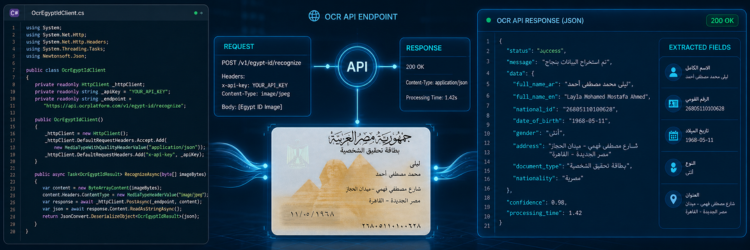
Common Mistakes
1. Sending JSON instead of multipart/form-data
The API expects multipart/form-data with the image attached
under the key "file". Sending a JSON body with a base64-encoded
image, or posting the raw bytes without a multipart wrapper, returns a
400 error. Always use MultipartFormDataContent as shown above.
2. Creating a new HttpClient per request
Wrapping HttpClient in a using block inside a
loop or a web request handler exhausts the socket pool. In console apps,
declare one static readonly HttpClient at the top level. In
ASP.NET Core apps, register IHttpClientFactory via
builder.Services.AddHttpClient() and inject it into your
handlers — never instantiate HttpClient directly in a
per-request scope.
3. Not checking result.Status before reading Data
A 200 response with "status": "error" means the image was
received but extraction failed (blurred scan, wrong document type, etc.).
The Data object will be null or empty in this case. Always
check result.Status == "success" before accessing any
Data fields.
4. Hardcoding the API key in source
API keys committed to source control are routinely scraped from public
repositories. Use Environment.GetEnvironmentVariable() in
development, and a secrets manager (Azure Key Vault, AWS Secrets Manager,
or ASP.NET Core User Secrets) in production. The code in this guide
already follows this pattern.
5. Ignoring the Confidence score
Accepting every response with Status == "success" regardless
of confidence leads to low-quality data entering your database. Add a
threshold check — e.g. result.Confidence < 0.85 — and
route borderline scans to a manual review queue rather than accepting them
automatically.
Use Cases
KYC and Customer Onboarding
Banks, fintechs, and insurance platforms built on .NET can drop this
integration into their onboarding pipeline. The extracted NationalId,
FullName, and BirthDate fields feed directly
into AML lookups, credit bureau queries, and CRM records — eliminating
the manual data-entry step that accounts for most onboarding drop-off.
See all use cases for full KYC workflow examples.
HR and Employee Onboarding
HR systems built on ASP.NET Core can scan employee IDs at hire time and
populate the HRMS record automatically. The Governorate and
Address fields support payroll and social insurance
registration flows that require verified address data.
Government and Enterprise Portals
Citizen-facing government portals and enterprise intranet applications on
.NET can reduce form-fill friction by scanning the ID and pre-populating
every identity field. The ExpiryDate check flags expired IDs
at the point of entry without a secondary validation call.
For high-volume deployments, see enterprise options.

Frequently Asked Questions
.NET 6 or later. The tutorial uses top-level statements,
DateOnly, and System.Text.Json — all
available since .NET 6. No external NuGet packages are required.
Yes. Install Newtonsoft.Json via NuGet, replace
JsonSerializer.Deserialize<T> with
JsonConvert.DeserializeObject<T>, and swap
[JsonPropertyName] for [JsonProperty]
on your model class properties. The HTTP request code is identical.
Register IHttpClientFactory in Program.cs
with builder.Services.AddHttpClient(). Inject it into
your controller or minimal API handler, call
factory.CreateClient(), and use the same
multipart/form-data request shown in this guide. Never instantiate
HttpClient directly inside a request handler.
ID_type=0 for National ID front, driver license, or
car license. ID_type=1 for National ID back side only.
ID_type=2 for passport or resident permit. One
endpoint, one model class, different ID_type values.
Check result.Confidence after deserialisation. If it
falls below your threshold (0.85 is a reasonable starting point
for KYC), route to a manual review queue. The threshold depends
on your use case — form pre-fill tolerates lower confidence than
identity verification.
Yes. Use a single shared HttpClient instance and
issue parallel calls with await Task.WhenAll(...).
Concurrency limits depend on your plan — see
pricing for details.
5-Minute Quick Start
Get your API key and test in 5 minutes
Free tier includes 100 API calls — enough to run this tutorial end to end
and validate your integration.
No credit card required.
Already have an account? Sign in →